Documentation home › Master Guide
Quick start
Six steps from download to a working site. Each step is explained in detail below.
- Upload and activate the Washlora theme (
washlora-theme.zip). - Install and activate Washlora Core, then the free WordPress Importer.
- Install the editor you will use (Elementor, WPBakery or Classic Editor — Gutenberg is built in), plus WooCommerce and Contact Form 7.
- Open Appearance → Import a niche and choose one of the 105 niches.
- Click Import selected niche, then open Pages and choose your home layout and editor version.
- Replace the sample content: Niche identity, menus, services, prices, booking and contact details.
Prepare staging and hosting
Work on a staging site first. Washlora needs WordPress 6.6 or newer and PHP 8.0 or newer.
- Take a restorable database and file backup.
- Ask your host for 256 MB or more of PHP memory and an execution allowance of around 300 seconds for imports.
- Set the upload limits above the size of the ZIP files you will upload.
Details: Installation and Requirements · Hosting and Troubleshooting
Install the theme and plugins
Upload the installable theme ZIP, then install the companion plugins and only the editor you plan to use.
- Upload and activate
washlora-theme.zip(the Washlora theme). - Install and activate Washlora Core, the required companion plugin.
- Install the free WordPress Importer.
- Install Elementor, WPBakery or Classic Editor (Gutenberg is built in), plus WooCommerce and Contact Form 7 if you need them.
Details: Installation and Requirements
EP 1 · Washlora: Laundry & Dry Cleaning WordPress Theme with WooCommerce (105 Demos) · 5:18 · YouTube
Import your niche
Choose one of the 105 niches. Each has three home layouts in four editor versions.
- Open Appearance → Import a niche and select a niche.
- Keep Download demo images checked, or uncheck it for a content-only import.
- Click Import selected niche, then review the log.
- Open Pages, pick the home and editor version, and set the front page in Settings → Reading.
Details: Niche Import
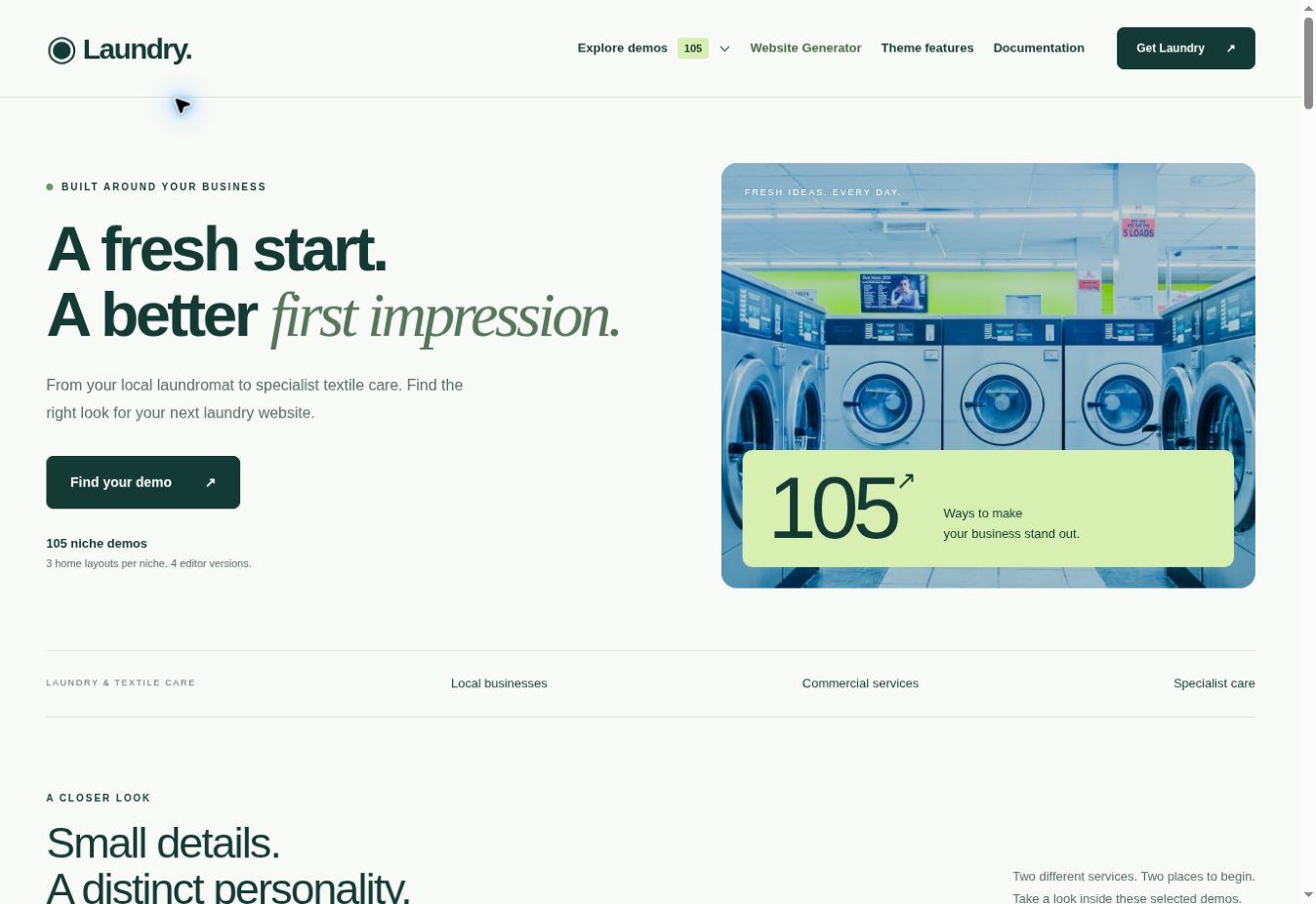 The 105-niche collection


Edit with one of four editors
Pick Gutenberg, Elementor, WPBakery or the Classic Editor and keep its page versions. The versions are separate pages, not conversions.
- Gutenberg: edit Washlora Section blocks and reorder them in List View.
- Elementor: edit the Laundry section widgets in the canvas or Navigator.
- WPBakery: edit Washlora Section components inside rows and columns.
- Classic: use the section controls below the editor and keep
[laundry_classic_sections].
Details: Editing with Four Page Editors
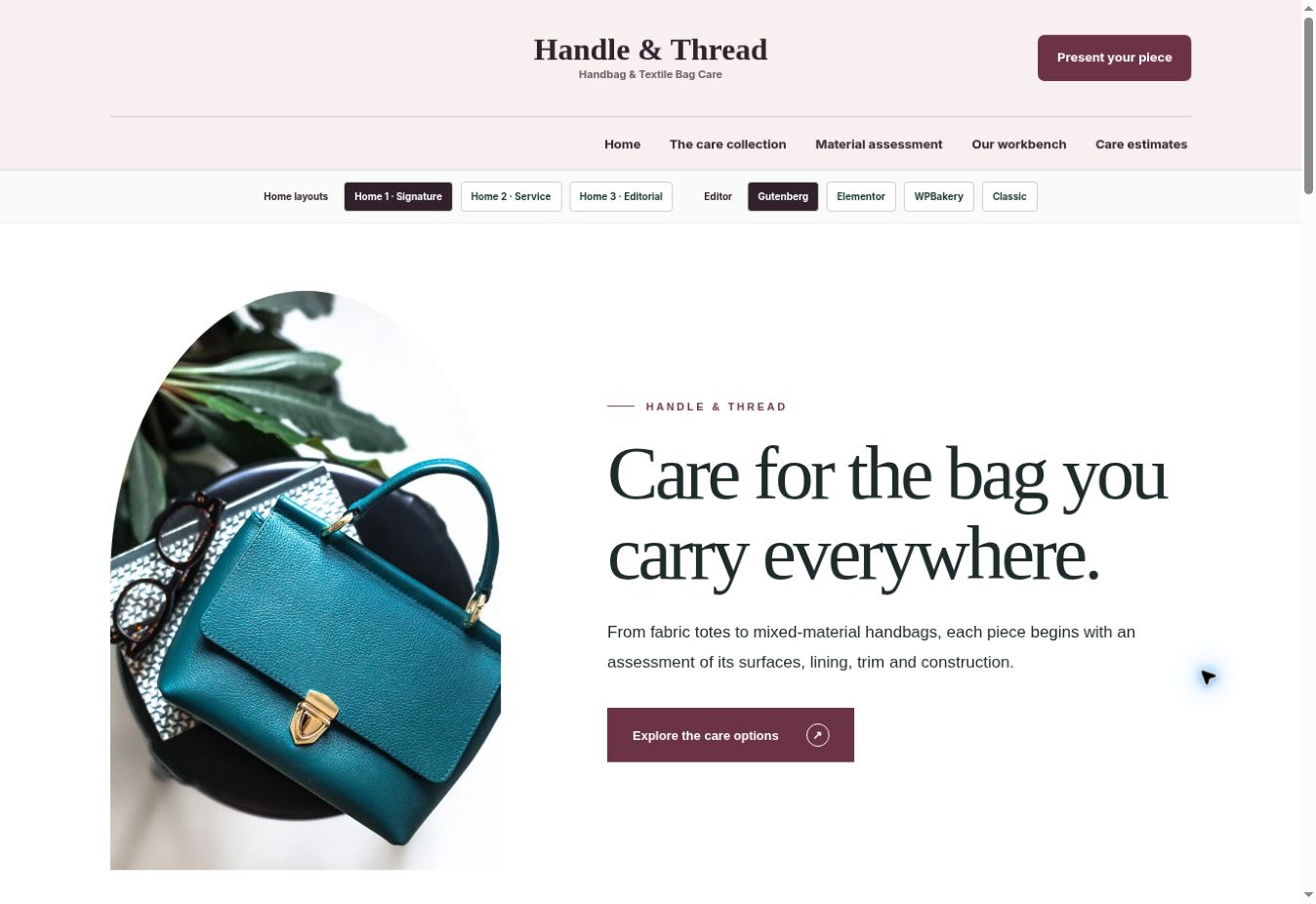 Home-layout and editor switcher
Brand, colours and menus
Set your identity first, then presentation, then global design. Native niche pages have their own identity and design layers.
- Set Brand, Tagline, Phone, Email, Hours, Area, About and colours in Niche identity.
- Adjust content width, corner radius and section spacing in Niche design.
- Use Design Studio and Washlora Options for global header, footer, layout and menu options.
- Update the menu labels and destinations.
Details: Branding, Design and Content
Services, pricing and images
Replace the sample services, prices and photography with your real business information.
- Edit the Services page in your editor and manage service records in the service content type.
- If you sell online, set real WooCommerce prices, taxes and availability.
- Replace sample photos and add useful alternative text.
Details: Branding, Design and Content
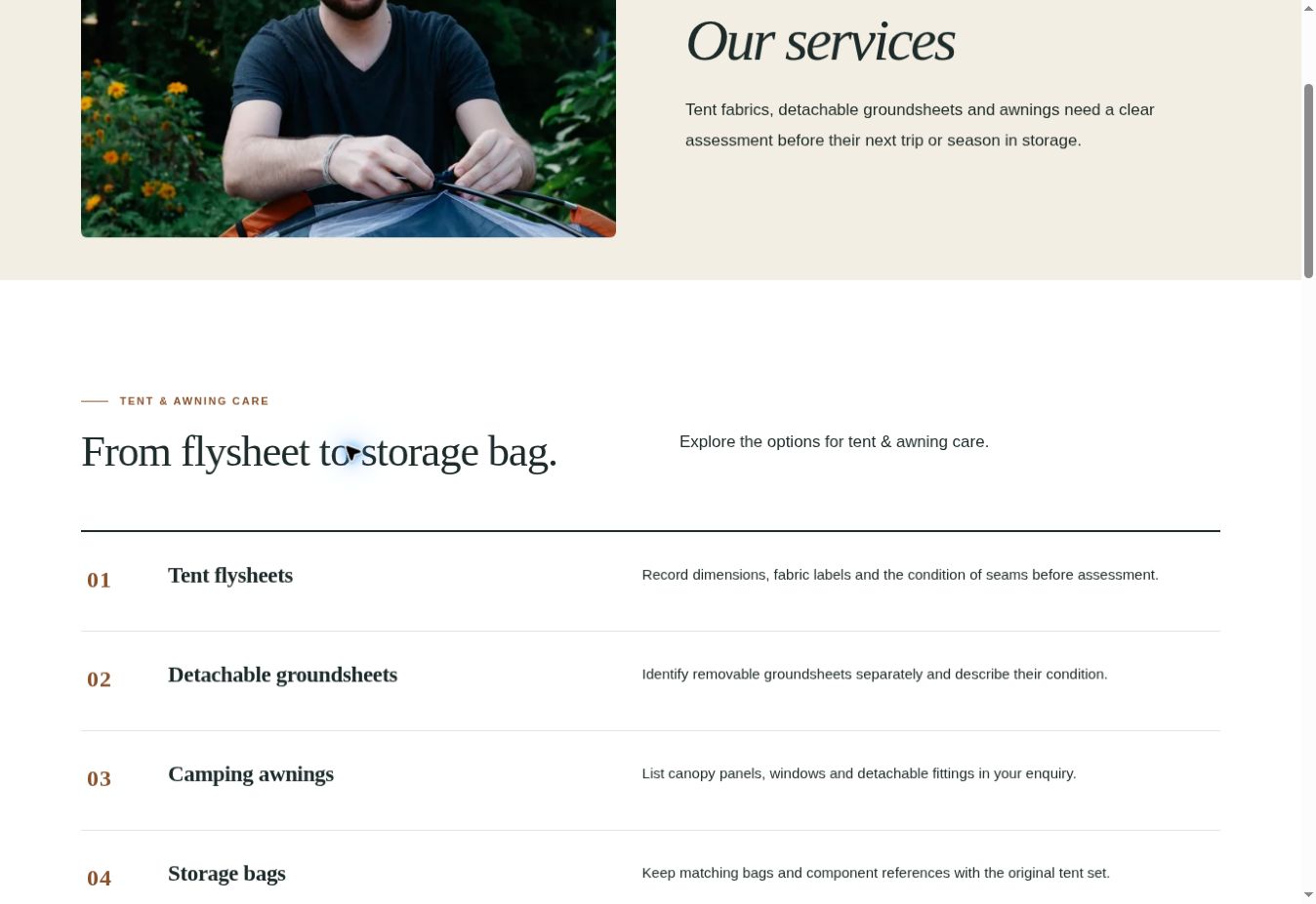 Service ledger section
EP 6 · Every Page Included: Services, Pricing, About & Contact · 4:36 · YouTube
Booking, pickup and delivery
The booking page collects requests. A request is not a paid or confirmed order.
- Keep the booking function section on the booking page.
- Replace the sample service areas and operating times.
- Submit a test request on staging and confirm that the request record is stored.
- Review Pickup Slots, Garment Items and Delivery Routes for your workflow.
Details: Booking, Pickup and Operations
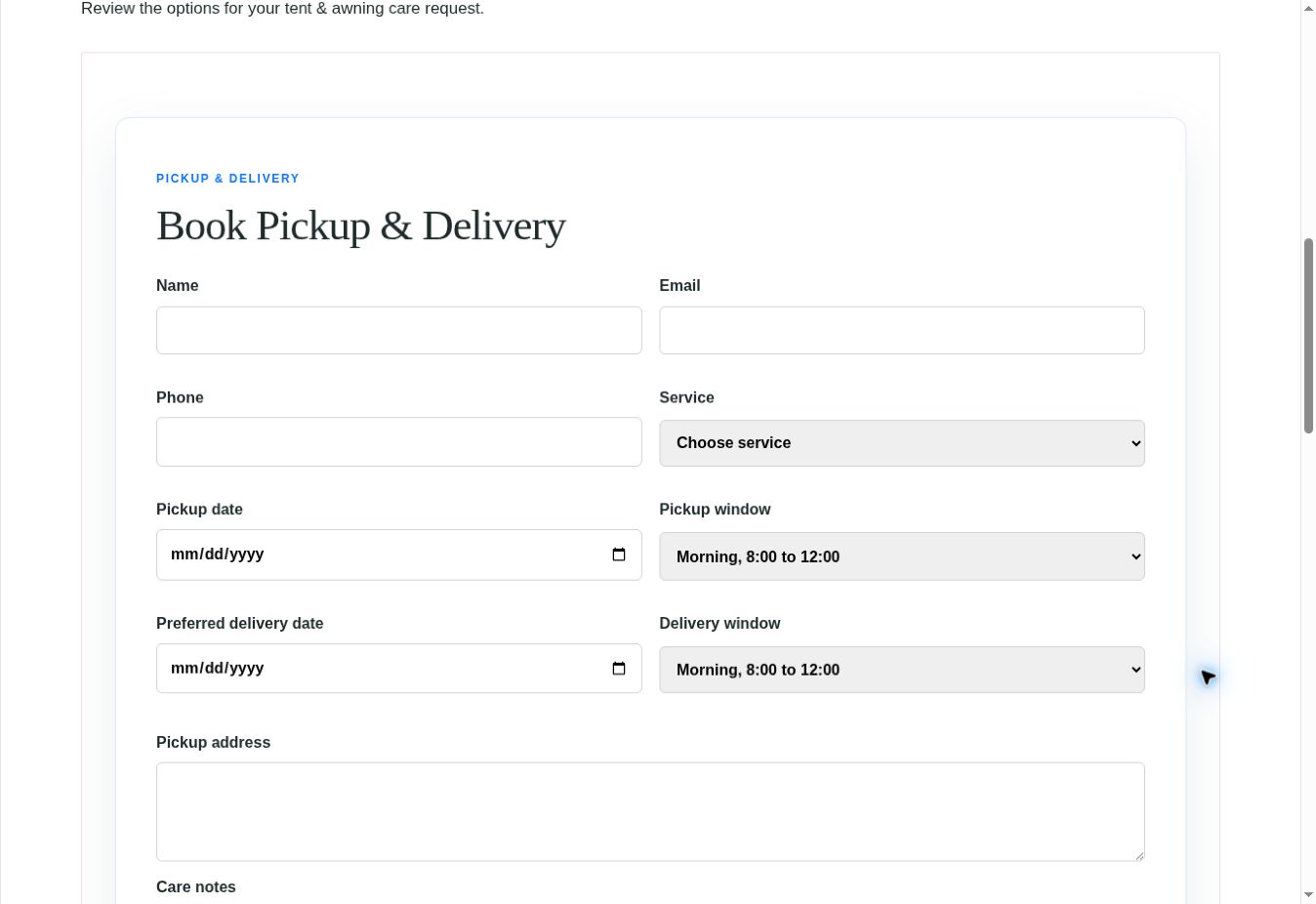 Pickup and delivery request form
EP 7 · Laundry Pickup & Delivery Booking Form in WordPress (Built-in) · 4:15 · YouTube
Shop and payments
Commerce Studio adds a laundry service store on top of native WooCommerce.
- Edit services in Products; fill in only the service details your business can fulfil.
- Use the shop shortcodes
[laundryes_commerce_store]or[laundryes_woocommerce_store niche="laundromat"]where needed. - Configure your own payment provider. Importing a niche never enables a gateway.
- Complete a test order before launch.
Details: Commerce Studio and Shop

AI Studio: generator and assistant
Create editable page drafts from the installed templates. No external AI API key is required.
- Open the AI Website Generator as an administrator and enter business name, niche, editor and home layout.
- Preview the website plan and check the warnings.
- Build the drafts, review each one and publish only after review.
- Assign your homepage and menu yourself — the generated menu is not assigned automatically.
Details: AI Studio
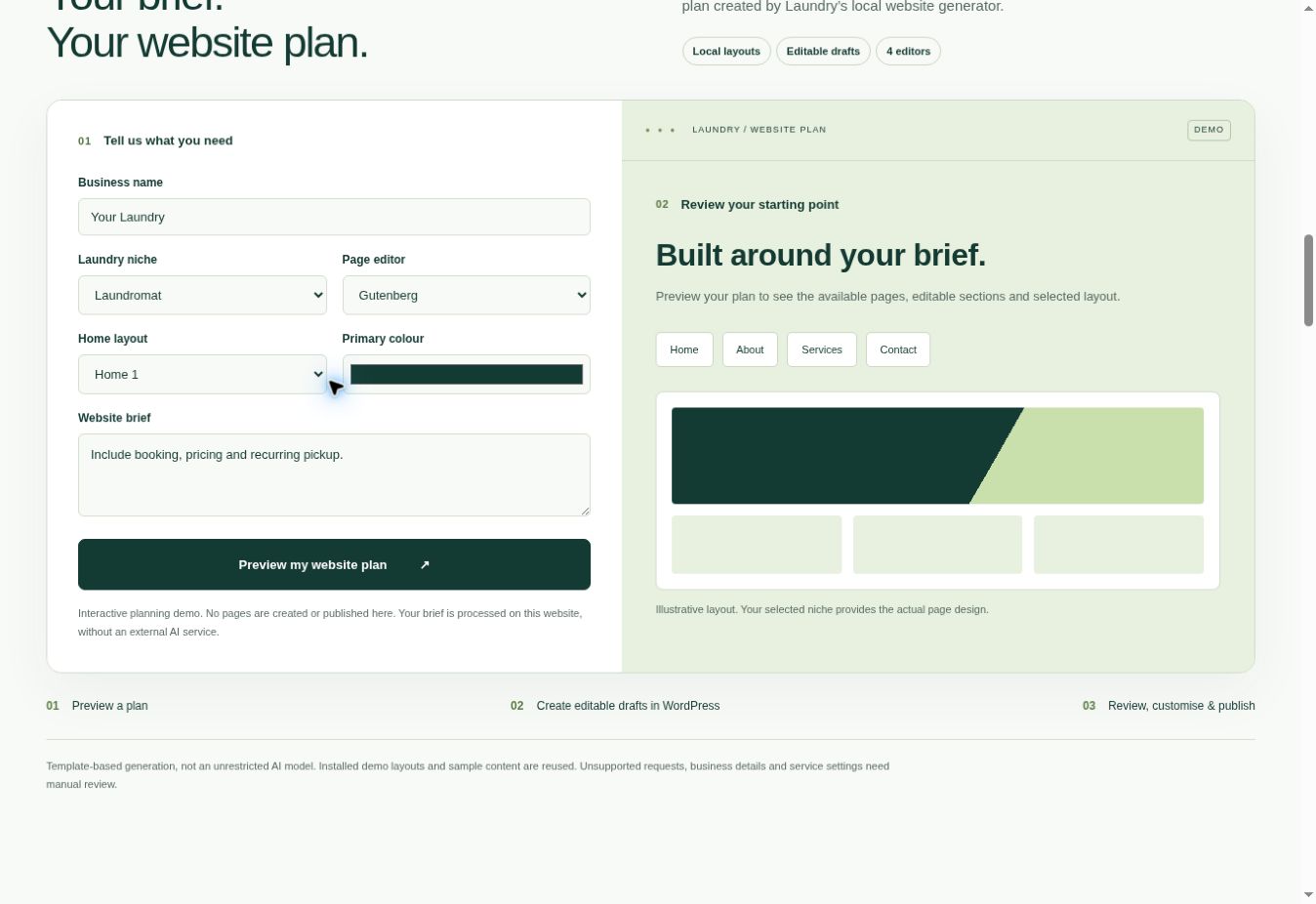 Generator planning demo
Sliders, languages and quality checks
Check hero sections, optional sliders, translations, right-to-left layouts and accessibility before you go live.
- Edit native hero sections in the page editor; use a slider plugin only if the page really embeds a slider.
- Choose the site language and provide translated content.
- Test RTL, small phones, keyboard focus and form labels.
Details: Languages, RTL and Accessibility
Launch and keep it healthy
Remove every sample value, test the real business rules, back up and then publish.
- Replace sample names, example addresses, phone numbers, prices and policies.
- Test booking, contact, cart and checkout on desktop and mobile.
- Clear caches and verify the public site while logged out.
- Keep custom code in a child theme and test updates on staging.
Details: Launch, Updates and Support
Complete references
Installation · Niche Import · Page editors · Branding and design · Booking and operations · Commerce Studio · AI Studio · Languages and RTL · Troubleshooting · FAQ · Admin screen procedures · Feature procedures · Feature reference · Developer notes · Changelog