Actual Lite interface captures
These images were rendered from ADT Shield Lite 1.5.9 on a separate clean WordPress sandbox. They do not show customer data, a public login, or the live testing site's scan results.
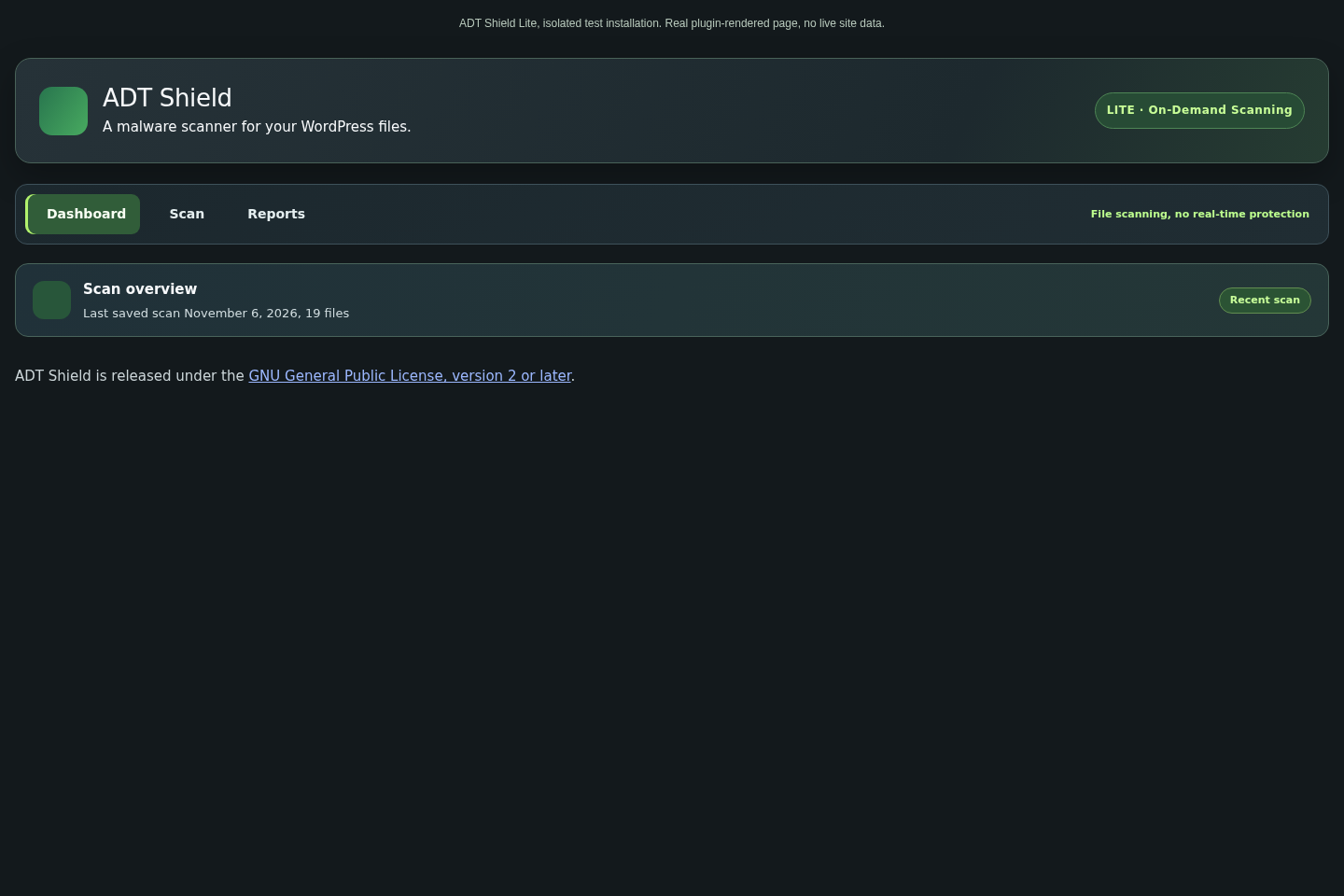
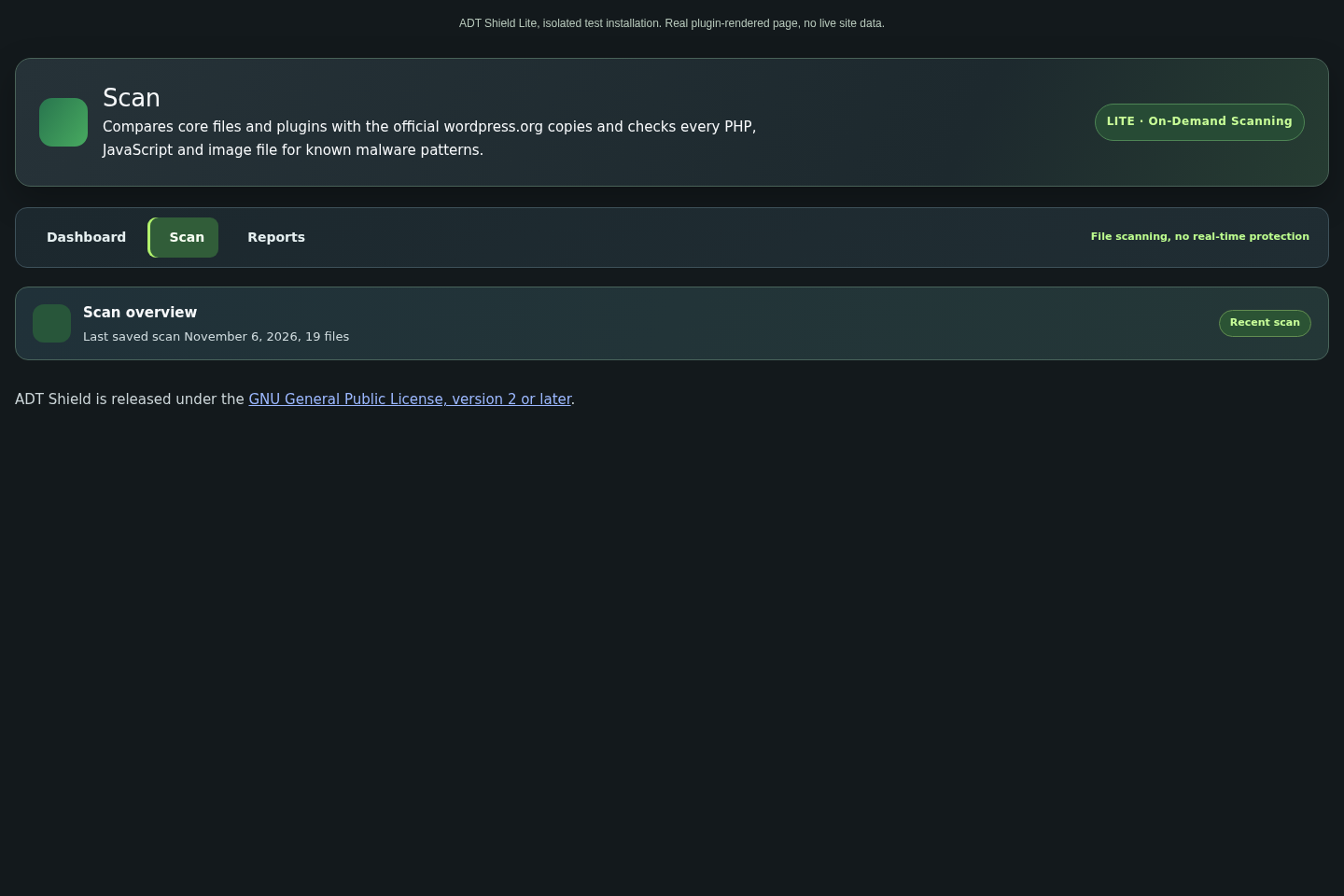
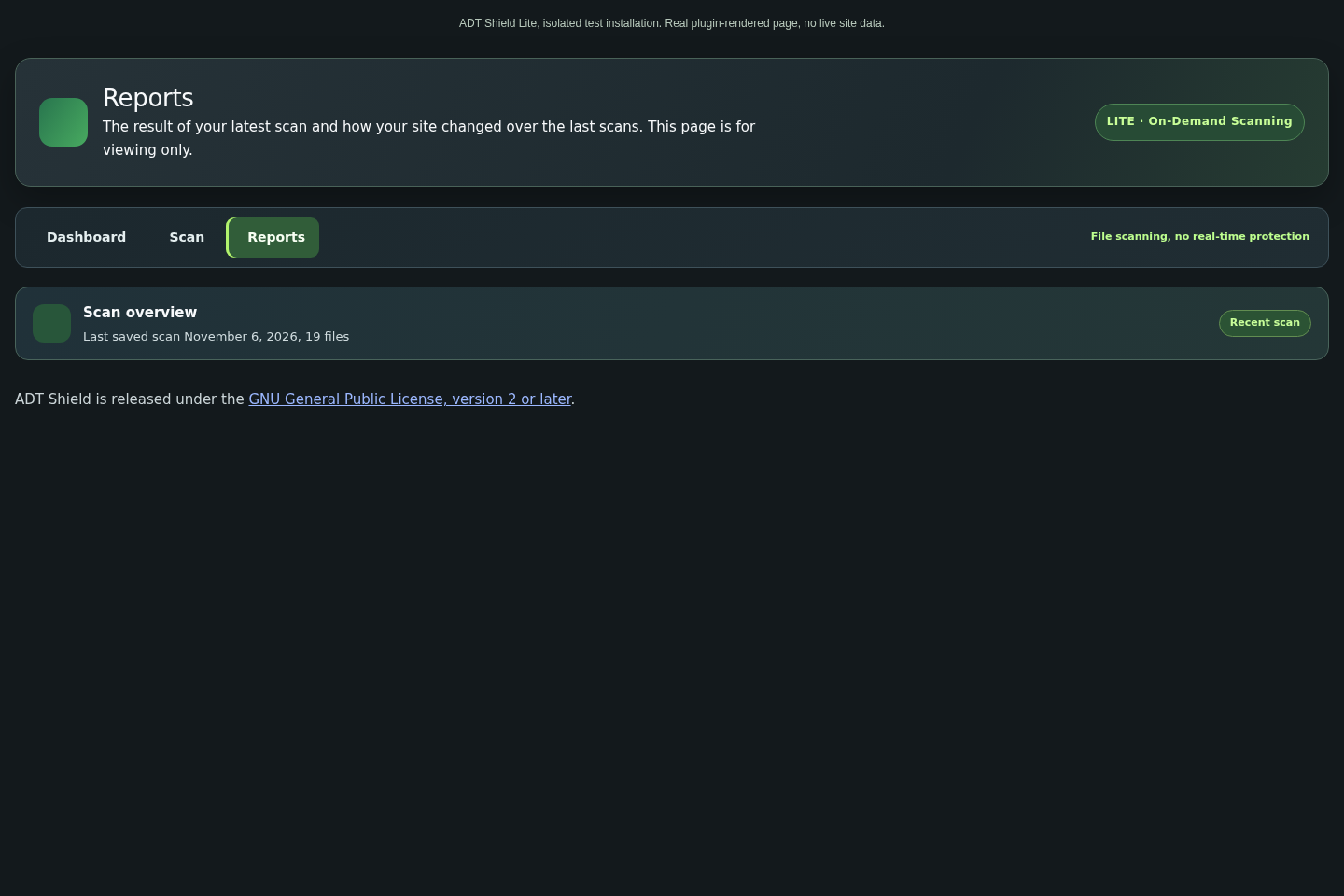
For all 14 actual Pro interface screenshots, visit the ADT Shield Pro interactive screenshot gallery. The Pro sandbox is unlicensed and is not a production protection environment.
Pro interface, unlicensed sandbox
These Pro 1.4.9 screen captures show the real plugin-rendered interface with Freemius unconfigured. They do not imply that premium real-time protection or backup restore has passed release testing.
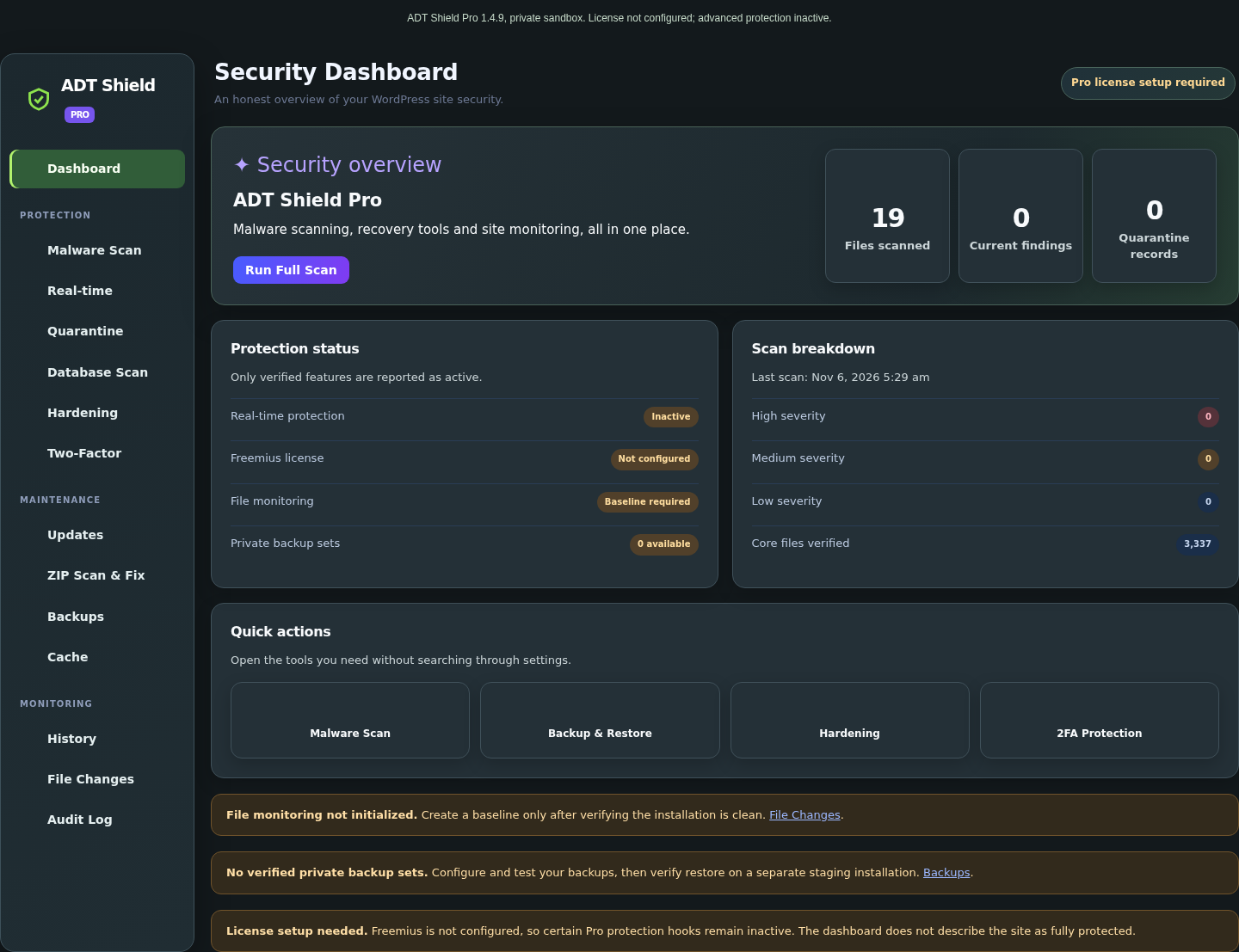
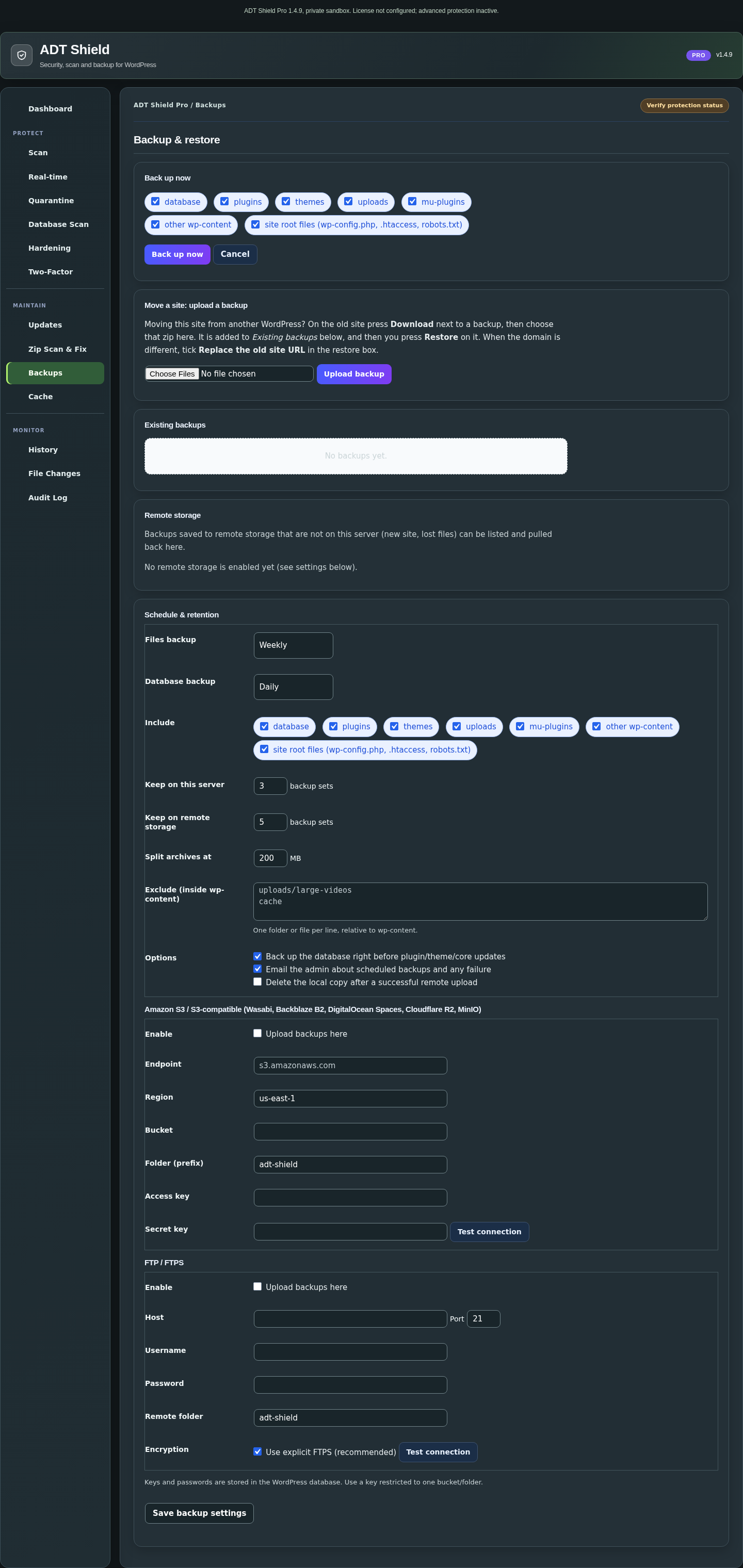
These are read-only captures of plugin-rendered WordPress UI. They are not authenticated-browser recordings or evidence that every workflow has passed full end-to-end testing.
Before installing
ADT Shield is designed for WordPress. Keep WordPress, plugins and themes updated. Create a verified website and database backup before any repair, quarantine or recovery workflow.
- Use a staging installation for evaluation.
- Install only one active edition at a time. Lite and Pro use overlapping settings.
- Ensure the web server can read WordPress files and PHP has required extensions.
- For Pro, note that premium features require valid Freemius integration.
Install the plugin
- Download the current evaluation ZIP from the downloads page.
- Open WordPress Admin → Plugins → Add New Plugin → Upload Plugin.
- Select the ZIP file and choose Install Now.
- Activate the Lite edition, or activate Pro only in a properly configured test environment.
- Open ADT Shield in the WordPress dashboard.
Do not activate Lite and Pro simultaneously. Switching editions should be tested on staging first.
Run your first file scan
- Go to ADT Shield → Scan.
- Choose the available scan scope and start the scan.
- Allow the scanner to complete. Large installations may take longer.
- Review the scan counts, findings and paths. Some files may be skipped by size or scan limits.
- Open Reports to review saved summaries.
Scans flag known suspicious patterns and integrity changes. A clean scan cannot guarantee that every threat has been detected.
How to read findings
| Severity | Suggested approach |
|---|---|
| High | Investigate urgently. Compare against a trusted source before changing any code. |
| Medium | Inspect file origin and code, and confirm whether the change is legitimate. |
| Low | Review context. Low severity does not automatically mean harmless. |
Mark as safe should only be used after verifying the specific file. The option can suppress future repeats of that known file content.
Quarantine and restore
Quarantine moves an eligible file aside so that it cannot execute from its original location. It is not the same as deleting the file or repairing infected code.
- Keep a recent backup before making changes.
- Review the finding and confirm the action.
- Quarantine only when the impact is understood.
- Restore only after confirming that the original file location and stored bytes are correct.
Some older quarantine records have incomplete original paths. The plugin blocks automatic restoration of those records to avoid restoring to the wrong location. Contact support for manual review.
Pro modules
Pro includes additional modules for real-time checks, file monitoring, database scans, ZIP packages, backups, hardening and two-factor authentication. Their operation depends on edition configuration and the license state.
- Real-time: must be enabled and independently tested before being trusted.
- Backups: successful archive creation does not replace an isolated test restoration.
- Two-factor authentication: verify login and recovery methods before enforcing broadly.
- Database scan: review detected content before any automated cleanup.
Safe operation
Keep plugin and WordPress backups outside the public web root when possible. Use a staging site for destructive tests. Do not distribute files from quarantine. Do not manually upload executable test malware to a production website.
Troubleshooting
Scanning is slow or stops
Check available PHP time and memory limits, background jobs, file permissions and the size of the installation. Use staging and inspect WordPress/PHP logs.
Pro real-time feature is inactive
Check the Freemius SDK, product configuration and an active license. This evaluation build has not yet cleared commercial release testing.
Quarantined file will not restore
Check whether the recorded original path is complete, the stored checksum matches and the destination is inside the installation. Do not bypass these safeguards.
How do I report a problem?
Use the ADT Shield support page. Include the edition and version, WordPress version, and the exact error text. Never send admin passwords or live database credentials.
Need help with a specific issue?
See the support checklist and safe reporting channels.
Visit support ↗